<?xml version="1.0" encoding="utf-8"?>
<feed xmlns="http://www.w3.org/2005/Atom">
    <id>https://8430177.github.io</id>
    <title>22k&apos;s Blog</title>
    <updated>2021-02-06T15:45:45.120Z</updated>
    <generator>https://github.com/jpmonette/feed</generator>
    <link rel="alternate" href="https://8430177.github.io"/>
    <link rel="self" href="https://8430177.github.io/atom.xml"/>
    <subtitle>To be better man</subtitle>
    <logo>https://8430177.github.io/images/avatar.png</logo>
    <icon>https://8430177.github.io/favicon.ico</icon>
    <rights>All rights reserved 2021, 22k&apos;s Blog</rights>
    <entry>
        <title type="html"><![CDATA[批量爬取二十次幂数据微信bid]]></title>
        <id>https://8430177.github.io/post/pi-liang-pa-qu-er-shi-ci-mi-shu-ju-wei-xin-bid/</id>
        <link href="https://8430177.github.io/post/pi-liang-pa-qu-er-shi-ci-mi-shu-ju-wei-xin-bid/">
        </link>
        <updated>2021-02-06T15:25:32.000Z</updated>
        <content type="html"><![CDATA[<h3 id="1-前提">1. 前提:</h3>
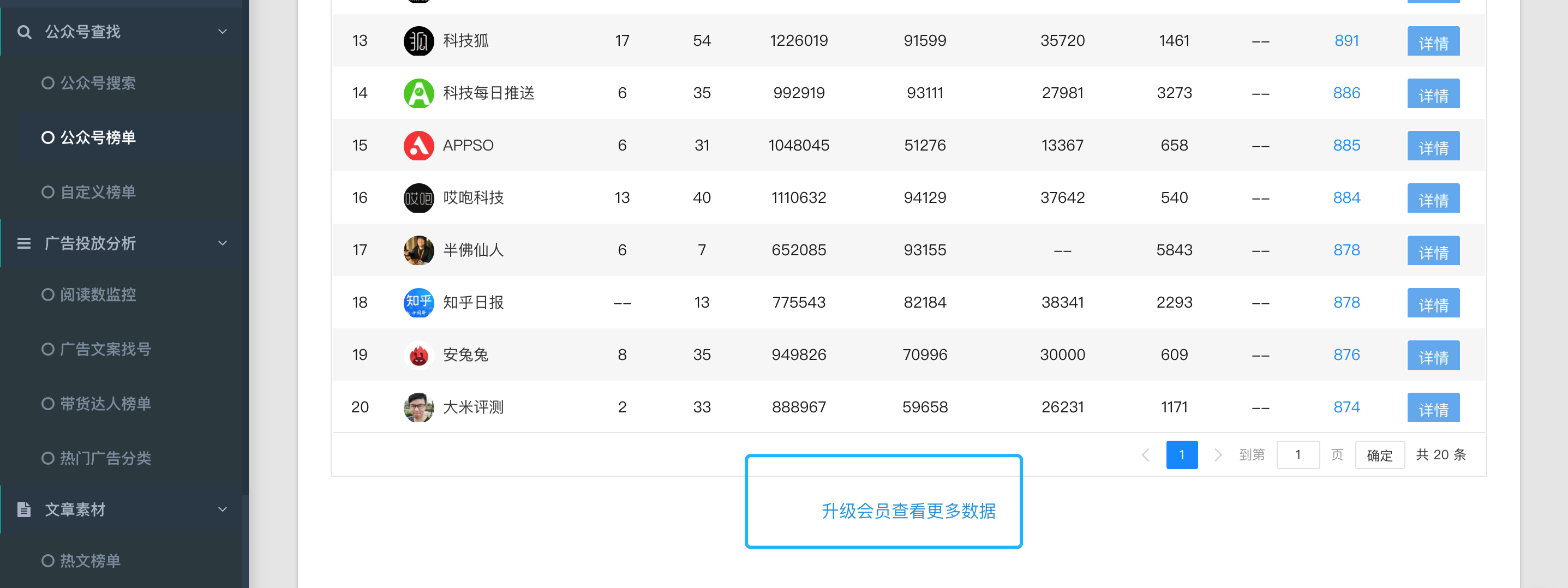
<p>爬取原因是RSSHub有一个订阅微信公众号的第三方源是二十次幂，但是这个网站需要开通VIP才可以搜索公众号。<br>
<img src="https://raw.githubusercontent.com/8430177/imgHub/master/uPic/31r8SJ.png" alt="31r8SJ" loading="lazy"><br>
接着就有想爬下数据然后订阅自己想要的公众号。</p>
<h3 id="2-准备工作">2. 准备工作</h3>
<p><img src="https://raw.githubusercontent.com/8430177/imgHub/master/uPic/f0mZmb.png" alt="f0mZmb" loading="lazy"><br>
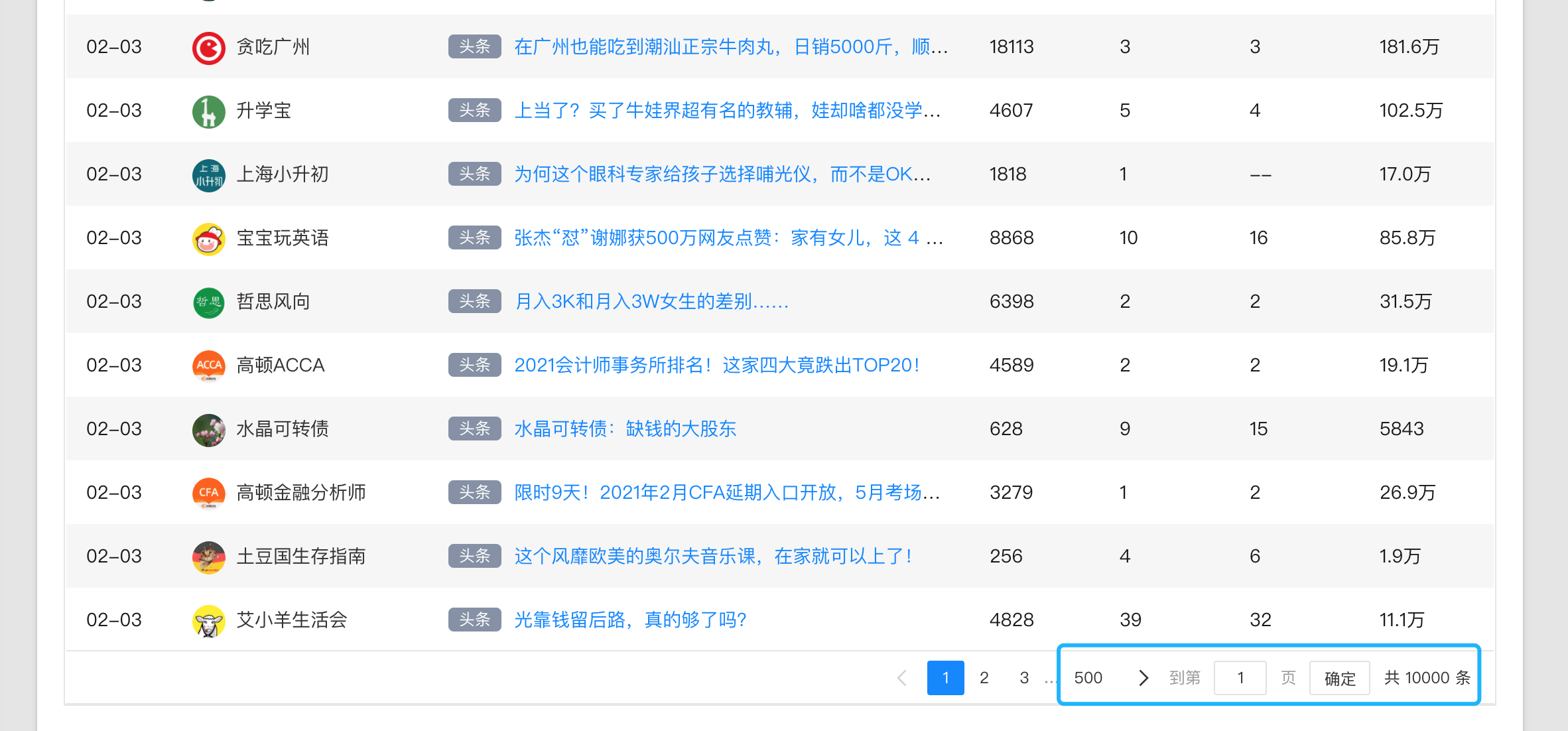
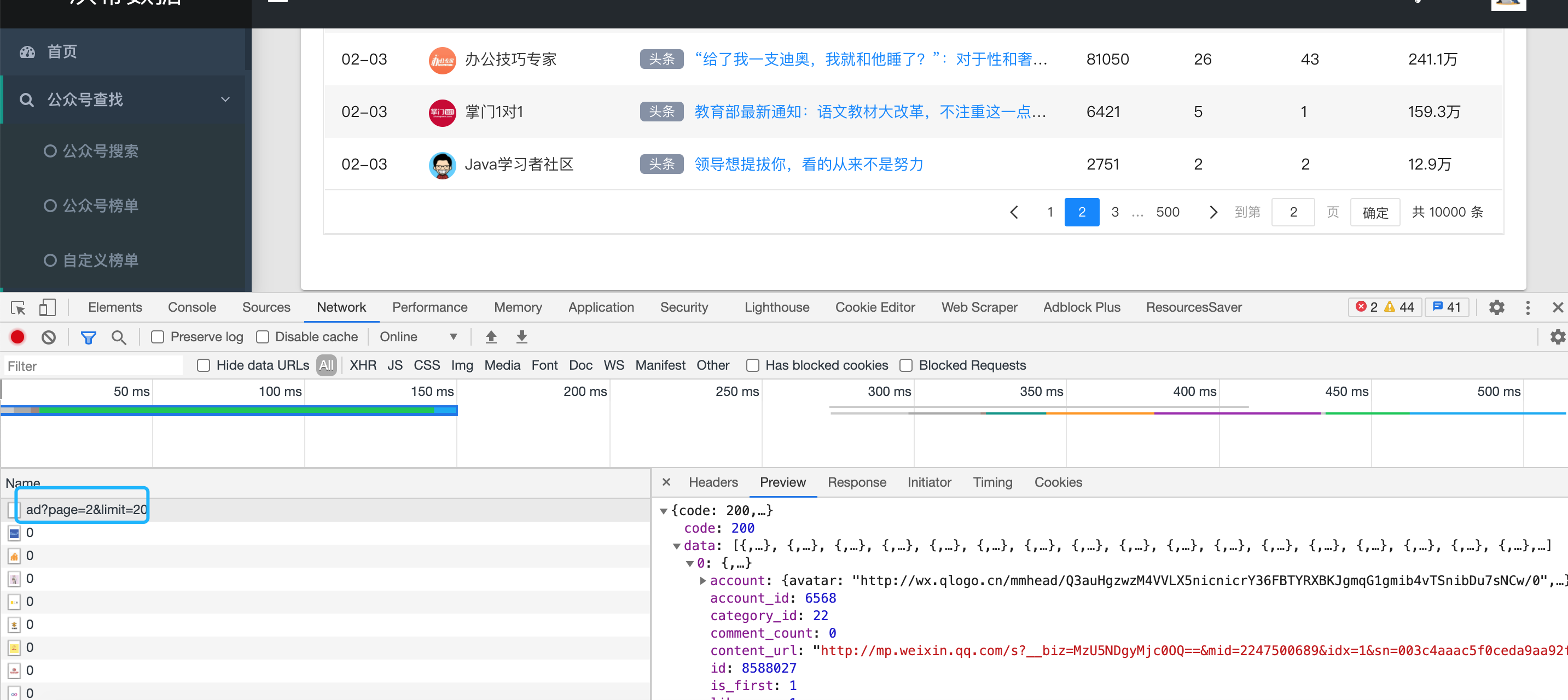
首先，看见了有大概500页的数据，接着我们F12看看NetWork栏目中的数据。<br>
<img src="https://raw.githubusercontent.com/8430177/imgHub/master/uPic/KmTNqQ.png" alt="KmTNqQ" loading="lazy"><br>
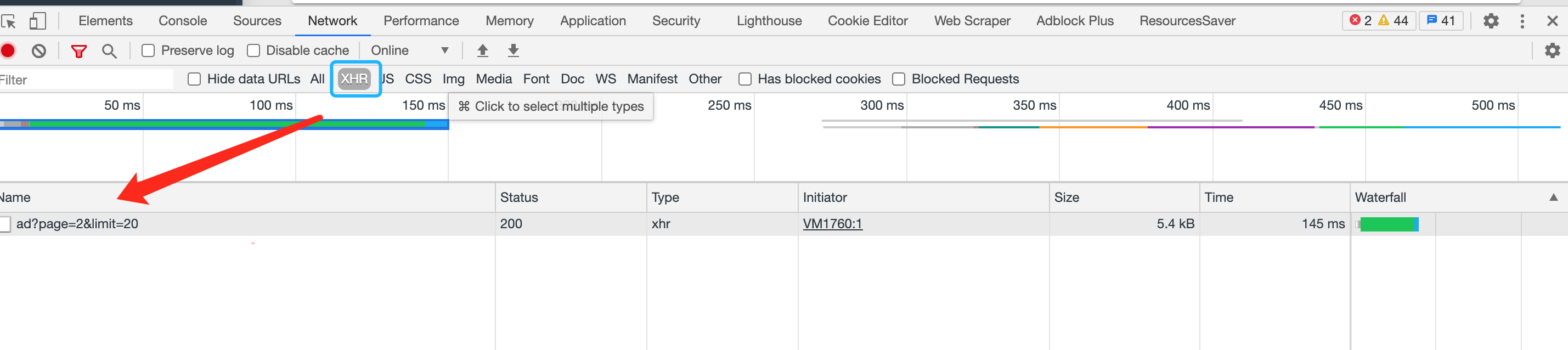
或者直接勾选XHR就可以发现这个是一个Ajax请求<br>
<img src="https://raw.githubusercontent.com/8430177/imgHub/master/uPic/zEY6cT.png" alt="zEY6cT" loading="lazy"><br>
接口返回了已经整理好的数据，所以我们不需要二次整理。<br>
直接编写代码（Java）</p>
<h3 id="3-编写代码">3. 编写代码</h3>
<pre><code class="language-java">import cn.hutool.http.HttpRequest;
import cn.hutool.http.HttpResponse;
import cn.hutool.json.JSONArray;
import cn.hutool.json.JSONObject;
import cn.hutool.json.JSONUtil;
import org.junit.Test;
public class test {
    @Test
    public void asd() throws InterruptedException {
        StringBuilder result = new StringBuilder();
        for (int i = 1; i &lt;= 500; i++) {
            HttpRequest request = new HttpRequest(&quot;https://www.ershicimi.com/api/search/ad?page=&quot; + i + &quot;&amp;limit=20&quot;);
            HttpResponse response = request.execute();
            JSONObject parse = JSONUtil.parseObj(response.body());
            JSONArray data = parse.getJSONArray(&quot;data&quot;);
            for (int i1 = 0; i1 &lt; data.size(); i1++) {
                JSONObject object = data.getJSONObject(i1).getJSONObject(&quot;account&quot;);
                result.append(object.get(&quot;nickname&quot;)+&quot;----&quot;+object.get(&quot;bid&quot;)+&quot;\n&quot;);
            }
            Thread.sleep(1000);
        }
        System.out.println(result.toString());
    }
}
</code></pre>
<blockquote>
<p>这里引入了Hutool这个工具包，大家需要自行搜索Maven引入</p>
</blockquote>
<h3 id="4效果">4.效果</h3>
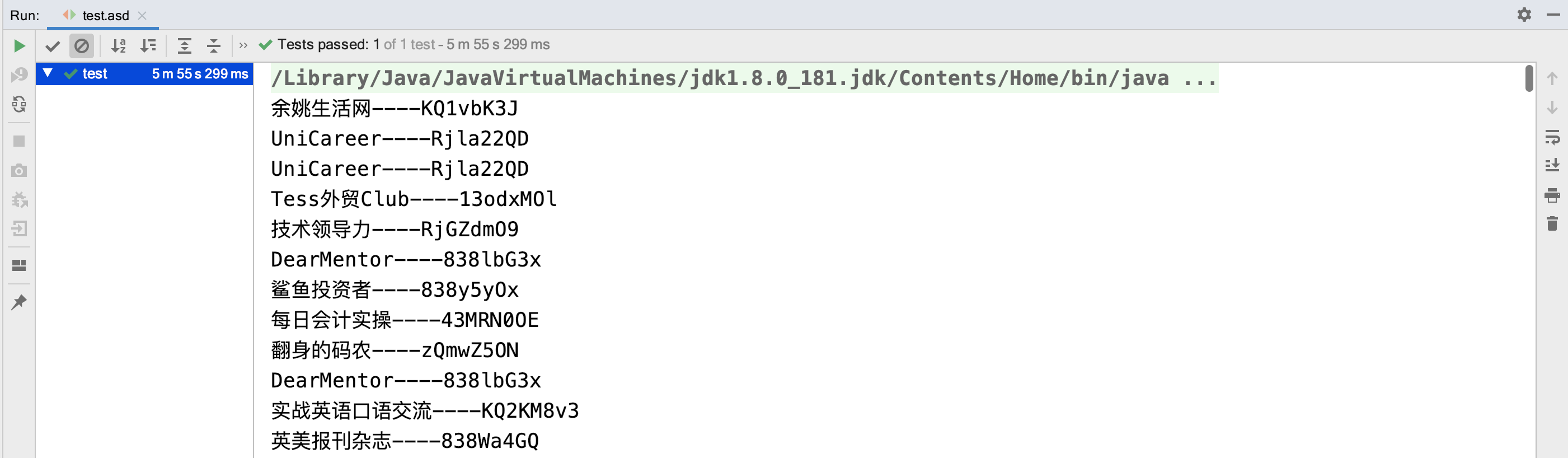
<p><img src="https://raw.githubusercontent.com/8430177/imgHub/master/uPic/gRupKD.png" alt="gRupKD" loading="lazy"><br>
等待执行完成之后，查看效果。成功获取数据</p>
<h3 id="注意事项">注意事项:</h3>
<p>接口会限制请求频率，所以我设置了1秒请求一次。这样子不会请求频繁</p>
<h3 id="结尾">结尾</h3>
<p>仅供学习参考，不可非法</p>
]]></content>
    </entry>
    <entry>
        <title type="html"><![CDATA[将RSS源翻译成指定语言后返回]]></title>
        <id>https://8430177.github.io/post/jiang-rss-yuan-fan-yi-cheng-zhi-ding-yu-yan-hou-fan-hui/</id>
        <link href="https://8430177.github.io/post/jiang-rss-yuan-fan-yi-cheng-zhi-ding-yu-yan-hou-fan-hui/">
        </link>
        <updated>2020-10-11T01:31:33.000Z</updated>
        <content type="html"><![CDATA[<h4 id="1-起因">1. 起因</h4>
<p>起初订阅的RSS源都是英文站点，英文站点看文章标题还是有点墨水的。所以并没有使用到翻译。<br>
但是随着订阅源增多，慢慢地有俄罗斯、西班牙等语言。<br>
这个就很头疼了，看都看不懂，接着就有了想将RSS源进行翻译。</p>
<h4 id="2-思路">2. 思路</h4>
<p>项目基于RSSHub进行拓展：<br>
所需的npm包:</p>
<ul>
<li><a href="https://www.npmjs.com/package/rss-parser">rss-parser</a></li>
<li><a href="https://github.com/wilsonwu/translation-google">translation-google</a></li>
</ul>
<ol>
<li>安装npm包</li>
</ol>
<pre><code class="language-bash">#安装解析RSS包
npm install --save rss-parser
#安装谷歌翻译API
npm install translation-google
</code></pre>
<ol start="2">
<li>实现</li>
</ol>
<blockquote>
<p>因为一个RSS源有需要item，所以我是获取了所有item中的title并且存进数组。进行全部翻译。<br>
翻译完成之后才拆分出来，防止google翻译API请求太频繁！！！</p>
</blockquote>
<pre><code class="language-js">const Parser = require('rss-parser');
const translate = require('translation-google');
//在国内需要加这个前缀
translate.suffix = 'cn';
module.exports = async (ctx) =&gt; {
    const parser = new Parser();
    //rss订阅地址
    const baseUrl = 'https://example.com/rss';
    const feed = await parser.parseURL(baseUrl);
    //临时的item
    const tempItem = [];
    feed.items.forEach((item) =&gt; {
        tempItem.push(item.title);
    });
    await translate(tempItem.join(&quot;\n&quot;)
        , { to:'zh-cn'}).then((res) =&gt; {
        const itemTitles = res.text.split(&quot;\n&quot;);
        feed.items.forEach((item, index) =&gt; {
            feed.items[index].title =  itemTitles[index];
        });
    }).catch((err) =&gt; {
        console.log(err);
    });
    ctx.state.data = {
        title: `title ~ 资讯`,
        link: `www.example.com/`,
        description: 'title ~ 资讯',
        item: feed.items,
    };
};
</code></pre>
<p>上面的是自动检测语言并且翻译成中文，如果需要翻译成其他语言。可以自行查看<a href="https://github.com/wilsonwu/translation-google">文档</a></p>
]]></content>
    </entry>
    <entry>
        <title type="html"><![CDATA[Linux访问Https站点Peer’s Certificate issuer is not recognized解决方案]]></title>
        <id>https://8430177.github.io/post/linux-fang-wen-https-zhan-dian-peers-certificate-issuer-is-not-recognized-jie-jue-fang-an/</id>
        <link href="https://8430177.github.io/post/linux-fang-wen-https-zhan-dian-peers-certificate-issuer-is-not-recognized-jie-jue-fang-an/">
        </link>
        <updated>2020-10-05T02:19:33.000Z</updated>
        <content type="html"><![CDATA[<ol>
<li>问题</li>
</ol>
<p>今天发现又有一个RSS订阅站点出错。浏览器访问正常显示订阅源，接着登陆服务器curl网站发现报错。</p>
<pre><code class="language-bash">curl: (60) Peer's Certificate issuer is not recognized.
More details here: http://curl.haxx.se/docs/sslcerts.html

curl performs SSL certificate verification by default, using a &quot;bundle&quot;
 of Certificate Authority (CA) public keys (CA certs). If the default
 bundle file isn't adequate, you can specify an alternate file
 using the --cacert option.
If this HTTPS server uses a certificate signed by a CA represented in
 the bundle, the certificate verification probably failed due to a
 problem with the certificate (it might be expired, or the name might
 not match the domain name in the URL).
If you'd like to turn off curl's verification of the certificate, use
 the -k (or --insecure) option.
</code></pre>
<ol start="2">
<li>解决方案<br>
将目标网站的crt下载下来。转换为pem并且追加进/etc/pki/tls/certs/ca-bundle.crt（Centos）<br>
实例:</li>
</ol>
<ul>
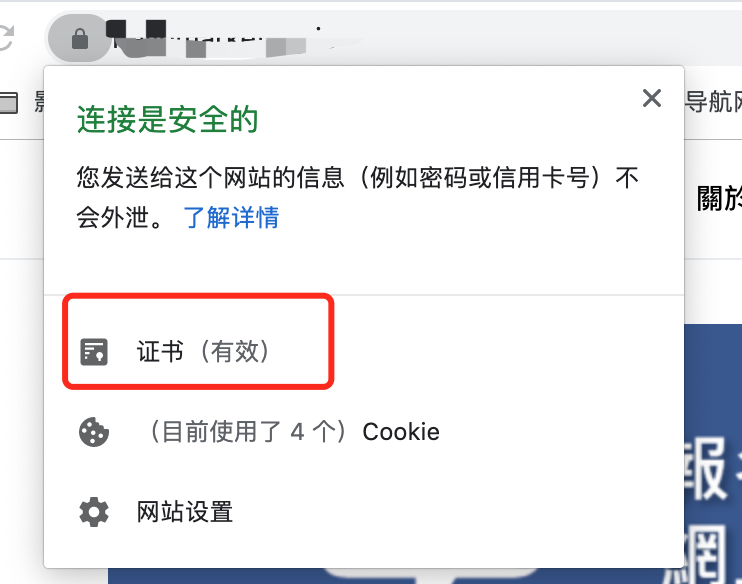
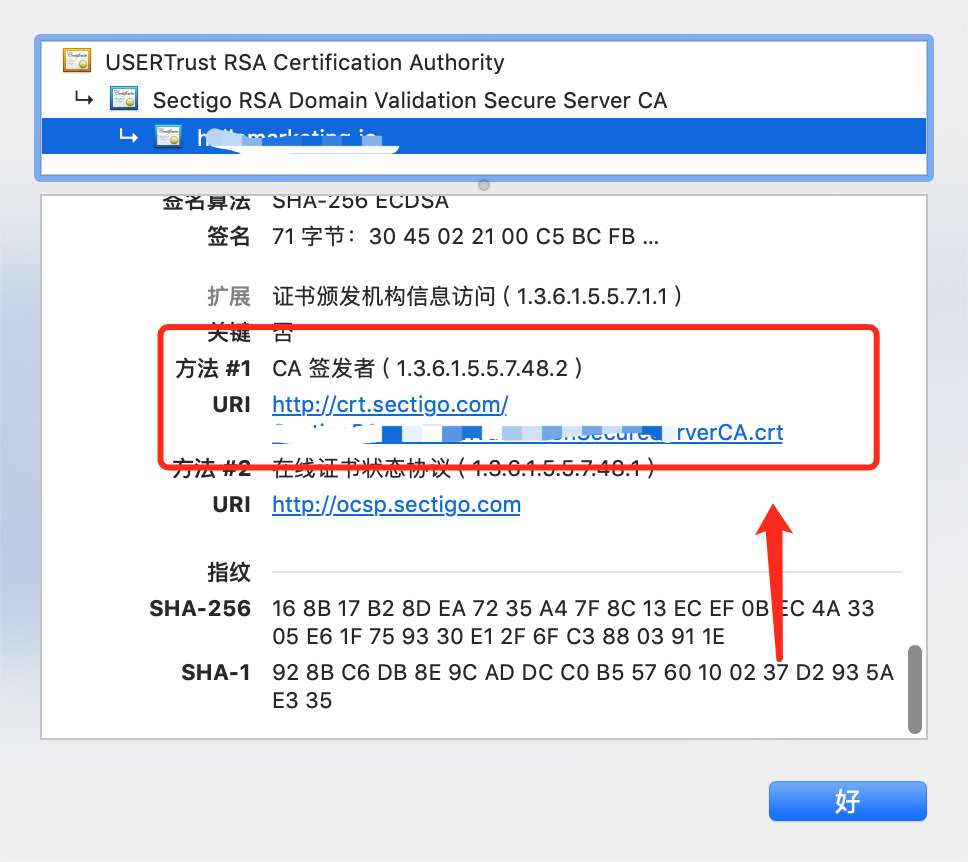
<li>找到网站所在的证书<br>
<img src="https://raw.githubusercontent.com/8430177/imgHub/master/uPic/wzy6fD.png" alt="wzy6fD" loading="lazy"><br>
<img src="https://raw.githubusercontent.com/8430177/imgHub/master/uPic/tmWFq0.png" alt="tmWFq0" loading="lazy"></li>
<li>复制证书地址--&gt;服务器终端：curl -O  example.crt(证书地址)</li>
</ul>
<pre><code class="language-bash">cd /etc/pki/tls/certs/ca-bundle.crt
curl curl -O  example.crt(证书地址)
#将crt转换为pem（example.crt为下载下来的证书文件，自行替换）
openssl x509 -in example.crt -inform der -outform pem -out temp.pem
#将内容追加进去ca-bundle.crt文件
cat temp.pem &gt;&gt; /etc/pki/tls/certs/ca-bundle.crt
</code></pre>
<ol start="3">
<li>测试<br>
在这里已经可以正常访问了!!!</li>
</ol>
]]></content>
    </entry>
    <entry>
        <title type="html"><![CDATA[Tiny Tiny RSS更新之后非80 443端口解决方案]]></title>
        <id>https://8430177.github.io/post/tiny-tiny-rss-geng-xin-zhi-hou-fei-80-443-duan-kou-jie-jue-fang-an/</id>
        <link href="https://8430177.github.io/post/tiny-tiny-rss-geng-xin-zhi-hou-fei-80-443-duan-kou-jie-jue-fang-an/">
        </link>
        <updated>2020-10-04T17:07:37.000Z</updated>
        <content type="html"><![CDATA[<h3 id="前记">前记:</h3>
<p>一直使用着docker版本的<a href="https://github.com/HenryQW/Awesome-TTRSS">Tiny Tiny RSS</a>，并且搭配着RSSHub这个制作订阅源。<br>
然后突然发现TTRSS更新了，之前的订阅非80、443端口的RSS地址都失效了。</p>
<h4 id="1查找问题">1.查找问题</h4>
<p>首先发现只有这个RSSHub订阅的失效，并且是更新了版本后失效。接着就群里讨论。<br>
上Github发现已经有人提了<a href="https://github.com/HenryQW/Awesome-TTRSS/issues/184">Issues</a></p>
<h4 id="2解决方案">2.解决方案</h4>
<p>既然需要采用80或443端口，那么很容易的可以用nginx中的location作处理。<br>
思路:<br>
example.com ===&gt; 正常范访问Tiny Tiny RSS后台<br>
www.example.com ===&gt; 访问RSSHub进行订阅</p>
<blockquote>
<p>代码示例:</p>
</blockquote>
<pre><code class="language-xml">#配置正常访问Tiny Tiny RSS后台
server {
    listen 80;
    server_name example.com;
      return 301 https://example.com$request_uri;
}
#配置正常访问RssHub后台（反向代理）
server {
    listen 80;
    server_name www.example.com;
    location / { 
    proxy_set_header X-Real-IP $remote_addr;
    proxy_set_header X-Forward-For $proxy_add_x_forwarded_for;
    proxy_set_header Host $http_host;
    proxy_set_header X-Nginx-Proxy true;
    #这里为RSSHub服务器端口
    proxy_pass http://127.0.0.1:1200/;
    proxy_redirect off;
    }
}
</code></pre>
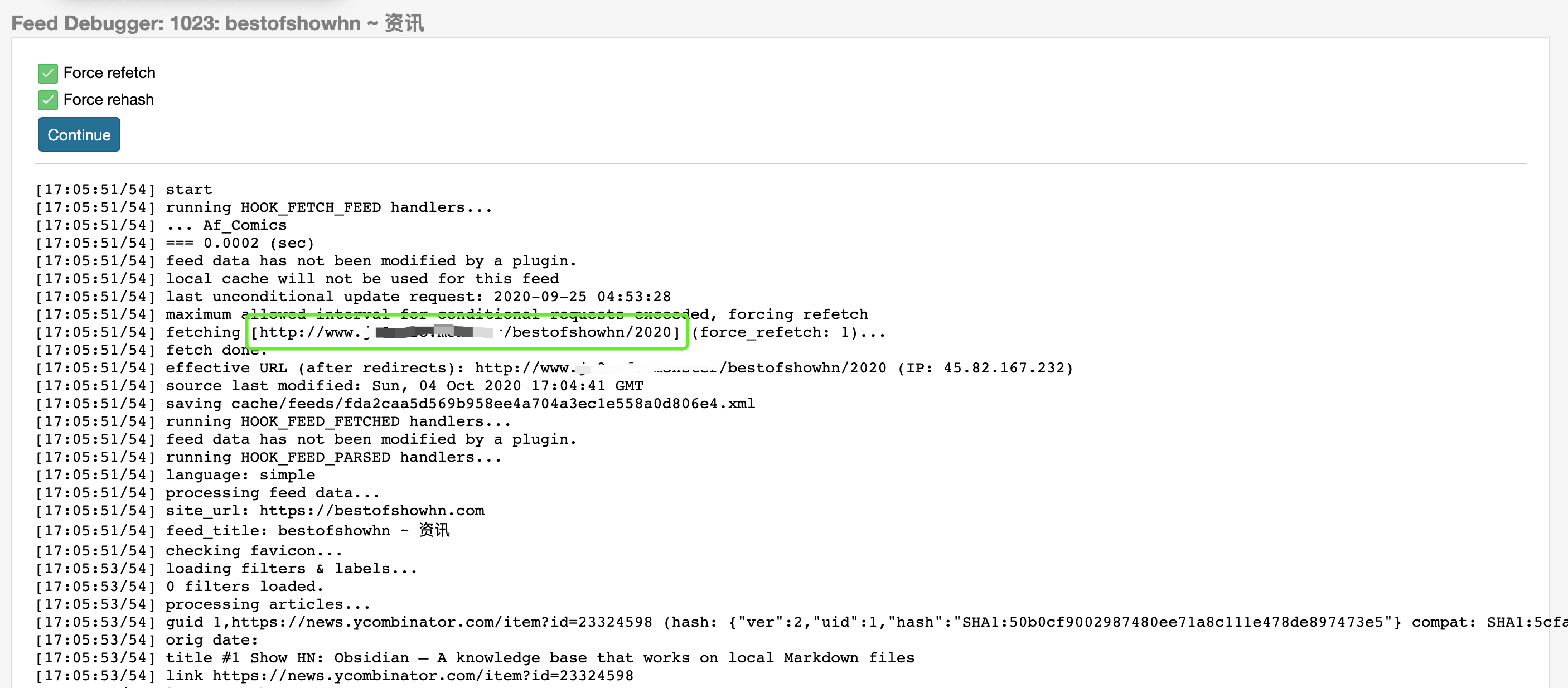
<p>可以看到已经可以正常获取RSS信息了<br>
<img src="https://raw.githubusercontent.com/8430177/imgHub/master/uPic/6L8Ceb.png" alt="6L8Ceb" loading="lazy"></p>
]]></content>
    </entry>
    <entry>
        <title type="html"><![CDATA[为git配置代理，加速git clone速度(Mac)]]></title>
        <id>https://8430177.github.io/post/wei-git-pei-zhi-dai-li-jia-su-git-clone-su-du/</id>
        <link href="https://8430177.github.io/post/wei-git-pei-zhi-dai-li-jia-su-git-clone-su-du/">
        </link>
        <updated>2020-03-10T03:30:01.000Z</updated>
        <content type="html"><![CDATA[<h3 id="1-起因">1. 起因</h3>
<p>最近不知道怎么回事，用这移动的宽带感觉git clone的速度超级的慢。接着就用<strong>Proxifier</strong>让Github Desktop单独的跑代理,接着还是觉得速度很慢，只有4Kb。检查后才发现git跑的还是本地的网络，接下来就是配置下git</p>
<h3 id="2-配置git代理mac">2. 配置git代理(Mac)</h3>
<ul>
<li>代理工具:shadowsocksX为例子<br>
顶部任务栏找到小飞机标志-&gt;高级设置-&gt;查看本地Socks5端口<br>
<img src="https://gitee.com/me_22k/oss/raw/master/uPic/zDswyn.png" alt="zDswyn" loading="lazy"></li>
</ul>
<pre><code class="language-shell"># 代理里边的1080请根据你自身的端口进行修改(socks5协议)
git config --global https.proxy socks5://127.0.0.1:1080
git config --global http.proxy socks5://127.0.0.1:1080
</code></pre>
<p>或者仅对github走代理</p>
<pre><code class="language-shell"># 1080端口修改成自己的代理端口(socks5协议)
git config --global http.https://github.com.proxy socks5://127.0.0.1:1080
git config --global https.https://github.com.proxy socks5://127.0.0.1:1080
</code></pre>
<h3 id="3检查是否完成">3.检查是否完成</h3>
<pre><code class="language-shell">#查看当前配置信息(全局)
git config --global --list
</code></pre>
<p><img src="https://gitee.com/me_22k/oss/raw/master/uPic/QiO8LR.png" alt="QiO8LR" loading="lazy"><br>
配置成功！<br>
<strong>到这里已经是配置成功了，可以进行测试看看效果了。下面是一些补充的信息！！！</strong></p>
<h3 id="4编写配置信息">4.编写配置信息</h3>
<pre><code class="language-shell">git config --global --edit
</code></pre>
<p><img src="https://gitee.com/me_22k/oss/raw/master/uPic/IsyqFZ.png" alt="IsyqFZ" loading="lazy"><br>
然后就是输入i进去自己修改相关信息了</p>
<h3 id="5取消代理">5.取消代理</h3>
<pre><code class="language-shell"># 取消全局代理
git  config --global --unset http.proxy #取消http代理
git  config --global --unset https.proxy #取消https代理
# 取消github代理
git config --global --unset http.https://github.com.proxy #取消http代理
git config --global --unset https.https://github.com.proxy #取消https代理
</code></pre>
]]></content>
    </entry>
    <entry>
        <title type="html"><![CDATA[如何免会员实现百度云倍速播放？]]></title>
        <id>https://8430177.github.io/post/ru-he-mian-hui-yuan-shi-xian-bai-du-yun-bei-su-bo-fang/</id>
        <link href="https://8430177.github.io/post/ru-he-mian-hui-yuan-shi-xian-bai-du-yun-bei-su-bo-fang/">
        </link>
        <updated>2020-02-25T12:18:29.000Z</updated>
        <content type="html"><![CDATA[<h2 id="1-前言">1、前言</h2>
<p>百度网盘中的视频，实现倍速播放是需要超级会员的？<br>
那么，如何实现免会员进行倍速播放呢？<br>
总结下来的话可以分为手机端、电脑端实现倍速播放!!!</p>
<h2 id="2-电脑端">2、电脑端</h2>
<ol>
<li>下载脚本管理工具（暴力猴/Tampermonkey）<br>
文章以安装暴力猴为例子：<a href="https://violentmonkey.github.io/">官网</a><br>
具体安装方法请参考:<a href="https://chromecj.com/web-development/2017-05/745.html">安装教程</a></li>
<li>安装百度云倍速播放插件<br>
百度云倍速脚本:<a href="https://greasyfork.org/zh-CN/scripts/392248-%E7%99%BE%E5%BA%A6%E7%BD%91%E7%9B%98%E7%99%BE%E5%BA%A6%E4%BA%91%E7%9B%98%E8%A7%86%E9%A2%91%E5%80%8D%E9%80%9F%E6%92%AD%E6%94%BE-%E6%9E%81%E5%BA%A6%E8%88%92%E9%80%82%E9%A1%B5%E9%9D%A2%E5%B9%BF%E5%91%8A%E5%8E%BB%E9%99%A4-%E6%9B%B4%E5%A4%9A%E9%80%89%E6%8B%A9%E5%80%8D%E9%80%9F%E9%80%89%E6%8B%A9-2020%E6%9C%80%E6%96%B0%E7%BA%AF%E5%87%80%E7%89%88-%E7%BD%91%E7%9B%98%E8%A7%86%E9%A2%91%E6%92%AD%E6%94%BE%E6%9C%80%E5%A5%BD%E7%9A%84%E4%B8%80%E4%B8%AA%E8%84%9A%E6%9C%AC">安装地址</a><br>
步骤:<br>
<img src="https://gitee.com/me_22k/oss/raw/master/uPic/9G0gjX.png" alt="9G0gjX" loading="lazy"><br>
<img src="https://gitee.com/me_22k/oss/raw/master/uPic/tfuyKE.png" alt="tfuyKE" loading="lazy"></li>
<li>测试效果<br>
选择你想要的倍数值即可！！！<br>
<img src="https://gitee.com/me_22k/oss/raw/master/uPic/FjFQ21.png" alt="FjFQ21" loading="lazy"></li>
</ol>
<h2 id="3-手机端">3、手机端</h2>
<p>这里我们以ios端为例子:</p>
<ul>
<li>一个支持倍速播放的浏览器<br>
这里我们以Alook浏览器作为例子：</li>
</ul>
<ol>
<li>首先将模式切换为电脑版<br>
<img src="https://gitee.com/me_22k/oss/raw/master/uPic/9CbSnF.png" alt="9CbSnF" loading="lazy"></li>
<li>登录你的百度云账号:<a href="https://pan.baidu.com">百度云</a></li>
<li>播放一个视频<br>
<img src="https://gitee.com/me_22k/oss/raw/master/uPic/2FD531.png" alt="2FD531" loading="lazy"></li>
<li>选择自己想要的播放速度<br>
<img src="https://gitee.com/me_22k/oss/raw/master/uPic/91ePmO.jpg" alt="91ePmO" loading="lazy"></li>
</ol>
<h2 id="3-结束语">3、结束语</h2>
<p>理论上只要是能支持倍数播放的手机浏览器，都是可以在百度云上进行倍速播放的。这里列举了Alook浏览器的使用方法，还有很多支持倍数播放的浏览器!!!</p>
]]></content>
    </entry>
    <entry>
        <title type="html"><![CDATA[selenium操作浏览器动态增删改页面元素(Java)]]></title>
        <id>https://8430177.github.io/post/selenium-cao-zuo-liu-lan-qi-dong-tai-zeng-shan-gai-ye-mian-yuan-su-java/</id>
        <link href="https://8430177.github.io/post/selenium-cao-zuo-liu-lan-qi-dong-tai-zeng-shan-gai-ye-mian-yuan-su-java/">
        </link>
        <updated>2020-02-22T05:02:29.000Z</updated>
        <content type="html"><![CDATA[<h2 id="1-简介">1、简介</h2>
<p>用过selenium的或许知道,WebDriver中的WebElement只有一个GetAttribute方法，没有增加、删除、修改属性的方法，只有一个获取属性的方法.<br>
那么我们要处理这个情况呢？<br>
答案当时是借助JS代码来实现！！！</p>
<h2 id="2-实现">2、实现</h2>
<p>把增加、删除、更新属性封装为方法调用</p>
<ul>
<li>获取属性<br>
WebElement中就有方法可以获取属性</li>
</ul>
<pre><code>getAttribute()
</code></pre>
<ul>
<li>增加、修改属性（如修改就传修改的属性名）</li>
</ul>
<pre><code class="language-java">/**
     * 在Element元素上新增加或修改属性
     * @param element 传入要增加元素的WebElement
     * @param AttributeName
     * @param value
     * @return
 */
    public boolean addAttribute(WebElement element,String AttributeName,String value)
    {
        ((JavascriptExecutor) driver).executeScript(&quot;arguments[0].setAttribute(arguments[1],arguments[2])&quot;, element, AttributeName, value);
        return true;
    }
</code></pre>
<ul>
<li>删除属性</li>
</ul>
<pre><code class="language-java">/**
     * 在Element元素上新增加属性
     * @param element 传入要增加元素的WebElement
     * @param AttributeName
     * @param value
     * @return
 */
    public boolean removeAttribute(WebElement element,String AttributeName,String value)
    {
        ((JavascriptExecutor) driver).executeScript(&quot;arguments[0].removeAttribute(arguments[1],arguments[2])&quot;, element, AttributeName, value);
        return true;
    }
</code></pre>
<h2 id="3-其他实用的js方法">3、其他实用的JS方法</h2>
<ul>
<li>当按钮不能点击的情况下，用js点击</li>
</ul>
<pre><code class="language-java">((JavascriptExecutor) driver).executeScript(&quot;arguments[0].click()&quot;, element);
</code></pre>
<ul>
<li>刷新浏览器</li>
</ul>
<pre><code class="language-java">((JavascriptExecutor) driver).executeScript(&quot;history.go(0)&quot;);
</code></pre>
<p>注：代码中的driver是为WebDriver，因为我是封装在一个类文件中，所以是调用类中的driver。请根据自己需求是否要传一个WebDriver对象进去!!!</p>
]]></content>
    </entry>
    <entry>
        <title type="html"><![CDATA[关于]]></title>
        <id>https://8430177.github.io/post/about/</id>
        <link href="https://8430177.github.io/post/about/">
        </link>
        <updated>2020-02-18T03:43:09.000Z</updated>
        <content type="html"><![CDATA[<blockquote>
<p>欢迎来到我的小站呀，很高兴遇见你！🤝</p>
</blockquote>
<h2 id="关于本站">🏠 关于本站</h2>
<h2 id="博主是谁">👨‍💻 博主是谁</h2>
<h2 id="兴趣爱好">⛹ 兴趣爱好</h2>
<h2 id="联系我呀">📬 联系我呀</h2>
<p>8430177@qq.com</p>
]]></content>
    </entry>
    <entry>
        <title type="html"><![CDATA[国内加速github访问速度]]></title>
        <id>https://8430177.github.io/post/guo-nei-jia-su-github-fang-wen-su-du/</id>
        <link href="https://8430177.github.io/post/guo-nei-jia-su-github-fang-wen-su-du/">
        </link>
        <updated>2020-02-17T13:26:16.000Z</updated>
        <content type="html"><![CDATA[<h2 id="1-编辑本地hosts文件">1、编辑本地hosts文件</h2>
<p>这里以Mac系统为例子:</p>
<pre><code class="language-shell">sudo vim /etc/hosts
</code></pre>
<p>输入i插入修改，在文件最后面加上以下的代码</p>
<pre><code>192.30.253.112 github.com
192.30.253.119 gist.github.com
151.101.100.133 assets-cdn.github.com
151.101.100.133 raw.githubusercontent.com
151.101.100.133 gist.githubusercontent.com
151.101.100.133 cloud.githubusercontent.com
151.101.100.133 camo.githubusercontent.com
151.101.100.133 avatars0.githubusercontent.com
151.101.100.133 avatars1.githubusercontent.com
151.101.100.133 avatars2.githubusercontent.com
151.101.100.133 avatars3.githubusercontent.com
151.101.100.133 avatars4.githubusercontent.com
151.101.100.133 avatars5.githubusercontent.com
151.101.100.133 avatars6.githubusercontent.com
151.101.100.133 avatars7.githubusercontent.com
151.101.100.133 avatars8.githubusercontent.com
192.30.253.112      github.com
192.30.253.119      gist.github.com
151.101.184.133     assets-cdn.github.com
151.101.184.133     raw.githubusercontent.com
151.101.184.133     gist.githubusercontent.com
151.101.184.133     cloud.githubusercontent.com
151.101.184.133     camo.githubusercontent.com
151.101.184.133     avatars0.githubusercontent.com
151.101.184.133     avatars1.githubusercontent.com
151.101.184.133     avatars2.githubusercontent.com
151.101.184.133     avatars3.githubusercontent.com
151.101.184.133     avatars4.githubusercontent.com
151.101.184.133     avatars5.githubusercontent.com
151.101.184.133     avatars6.githubusercontent.com
151.101.184.133     avatars7.githubusercontent.com
151.101.184.133     avatars8.githubusercontent.com
</code></pre>
<p>最后在按下Esc键，输入:wq保存即可!!!</p>
<h2 id="2-window">2、Window</h2>
<p>在 Windows 系统中，hosts文件的位置为：C:\Windows\System32\drivers\etc<br>
注意,Windows也是同样需要管理员权限。</p>
<h2 id="3-测试">3、测试</h2>
<p>打开浏览器访问github.com测试下，看看是不是快了很多!!!</p>
]]></content>
    </entry>
    <entry>
        <title type="html"><![CDATA[Kali Linux更换源及更新软件、系统]]></title>
        <id>https://8430177.github.io/post/kali-linux-geng-huan-yuan-ji-geng-xin-ruan-jian-xi-tong/</id>
        <link href="https://8430177.github.io/post/kali-linux-geng-huan-yuan-ji-geng-xin-ruan-jian-xi-tong/">
        </link>
        <updated>2020-02-17T02:48:14.000Z</updated>
        <content type="html"><![CDATA[<h2 id="1-更换国内更新源">1、更换国内更新源</h2>
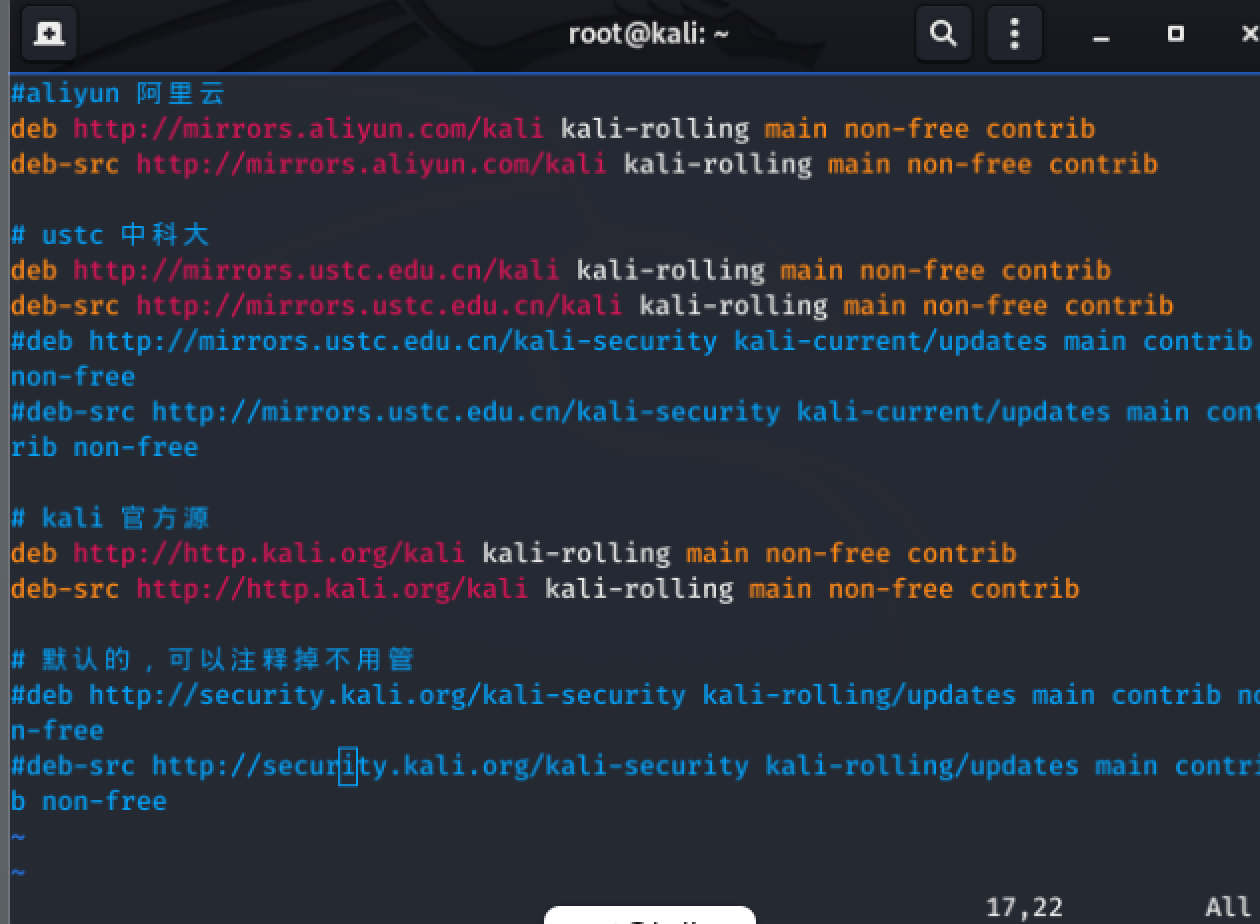
<p>打开系统终端，输入以下命令:</p>
<pre><code class="language-shell">vim /etc/apt/sources.list
</code></pre>
<p>然后输入i进入插入编辑模式，粘贴下面的国内源进去</p>
<pre><code>#aliyun 阿里云
deb http://mirrors.aliyun.com/kali kali-rolling main non-free contrib
deb-src http://mirrors.aliyun.com/kali kali-rolling main non-free contrib
# ustc 中科大
deb http://mirrors.ustc.edu.cn/kali kali-rolling main non-free contrib
deb-src http://mirrors.ustc.edu.cn/kali kali-rolling main non-free contrib
#deb http://mirrors.ustc.edu.cn/kali-security kali-current/updates main contrib non-free
#deb-src http://mirrors.ustc.edu.cn/kali-security kali-current/updates main contrib non-free
# kali 官方源
deb http://http.kali.org/kali kali-rolling main non-free contrib 
deb-src http://http.kali.org/kali kali-rolling main non-free contrib 
</code></pre>
<p>粘贴成功之后按Esc退出键后输入:wq保存文件<br>
<img src="https://8430177.github.io/post-images/1581908458046.png" alt="" loading="lazy"></p>
<h2 id="2-更新软件-系统">2、更新软件、系统</h2>
<pre><code class="language-shell">apt-get update #更新软件所有列表
</code></pre>
<pre><code class="language-shell">apt-get upgrade #更新软件
</code></pre>
<pre><code class="language-shell">apt-get dist-upgrade #更新系统版本
</code></pre>
<p>或者可以一起执行</p>
<pre><code class="language-shell">apt-get update &amp; apt-get upgrade &amp; apt-get dist-upgrade #将上面三条命令一块执行
</code></pre>
<h2 id="3-清理">3、清理</h2>
<pre><code class="language-shell">apt-get clean #清理安装包
</code></pre>
]]></content>
    </entry>
</feed>